Overview & Interface Tour
Homecrate is a multitrack audio and MIDI recorder for iPhone and iPad. It gives you up to 8 audio tracks and 8 MIDI tracks, AUv3 plugin support, a piano roll and drum step sequencer, spatial audio, and an AI music assistant — all in one app.
This page walks you through every region of the interface so you know what you’re looking at before you hit record.
The Four Main Regions
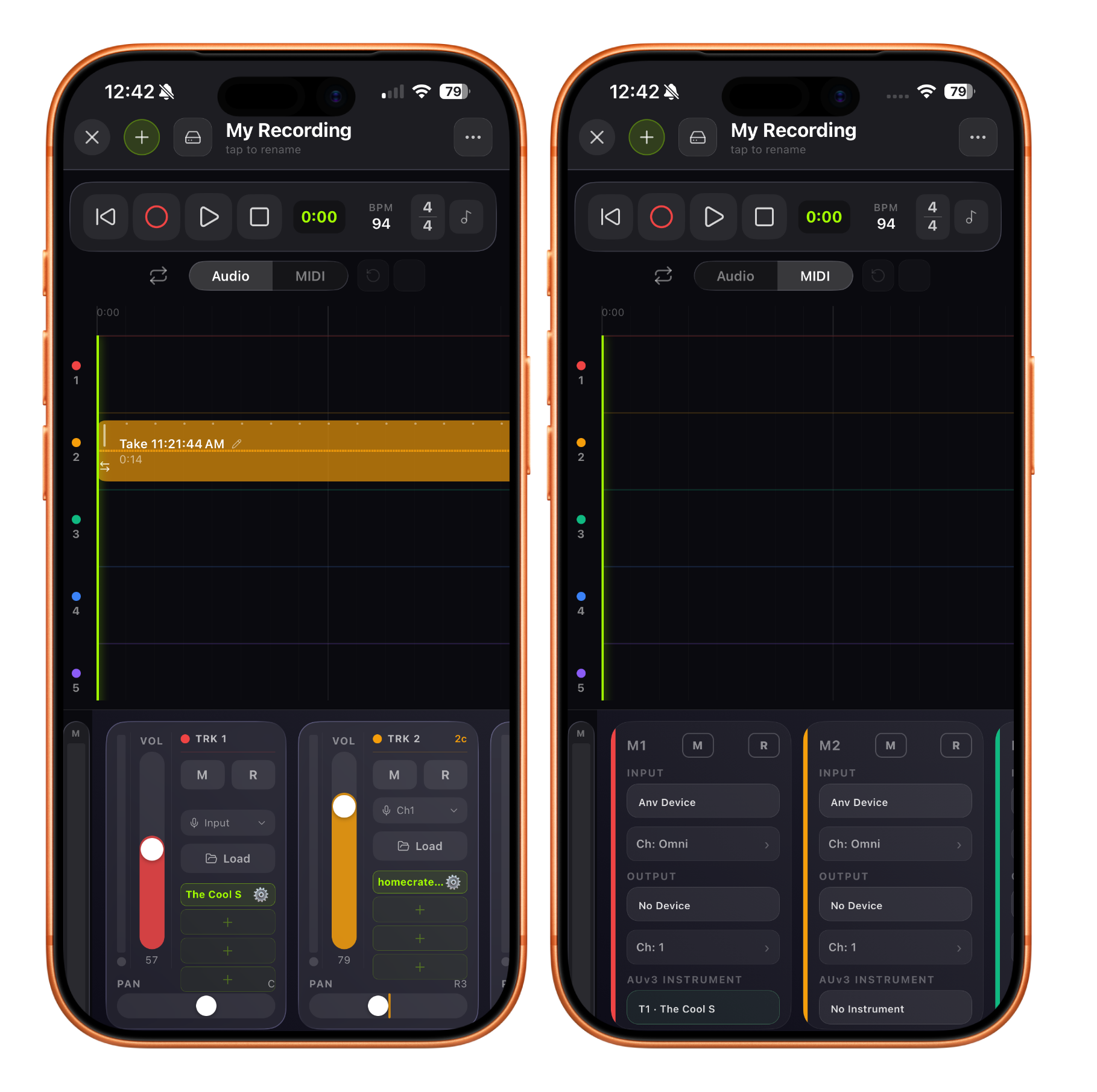
1. Header Bar
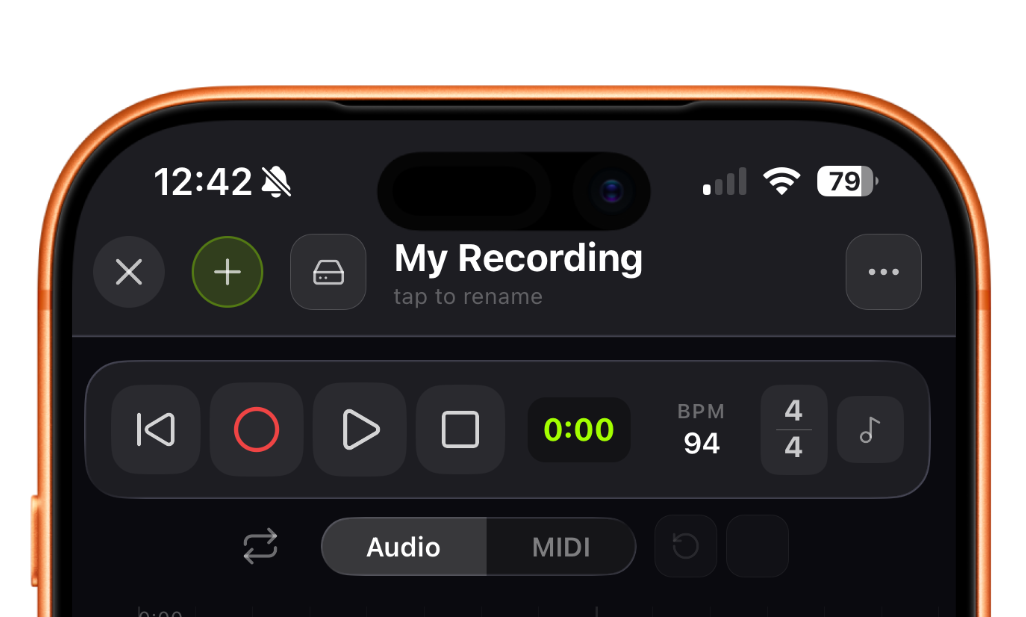
The header runs across the top of the screen and contains:
| Element | What it does |
|---|---|
| ✕ (close) | Saves the project and closes the recorder |
| + (new project) | Creates a new blank project (auto-saves the current one first) |
| 💾 (save) | Saves the project immediately; turns green with a checkmark on success |
| Project name | Tap to rename the current project |
| ⋯ (more menu) | Opens the overflow menu: export, open project, lyrics, tuner, chat, spatial mode, video, and settings |
2. Transport Bar
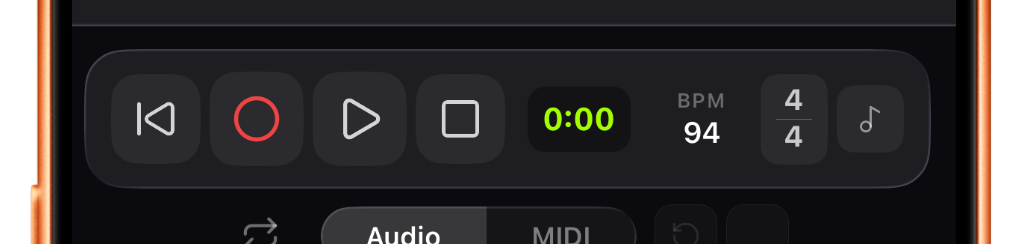
The transport bar is your playback and recording command center.
| Control | Function |
|---|---|
| ⏮ Rewind | Returns the playhead to 0:00 |
| ⏺ Record | Starts recording on the armed track (disabled in Spatial mode) |
| ▶ Play / ⏸ Pause | Starts or pauses playback |
| ⏹ Stop | Stops playback or recording; preserves the current playhead position |
| Position display | Shows the current playhead time (M:SS). Tap to type a time and jump there. |
| BPM field | Type a number to change the project tempo |
| Time signature | Shows current time sig (e.g. 4/4). Tap to open the time signature picker. |
| ♩ Metronome | Toggles the metronome click track on and off |
3. Track Mode Tabs & Undo/Redo

Just below the transport bar:
- Audio / MIDI tabs — Switch the timeline and mixer between audio tracks and MIDI tracks. These are independent lane sets; both exist simultaneously in every project.
- 🔁 Loop toggle — Activates the loop region. When lit blue, playback loops between the loop start and end markers. See Loop Regions.
- ↩ Undo / ↪ Redo — Steps through your edit history. Supported actions: clip delete, clip move, trim changes. See Undo & Redo.
4. Timeline
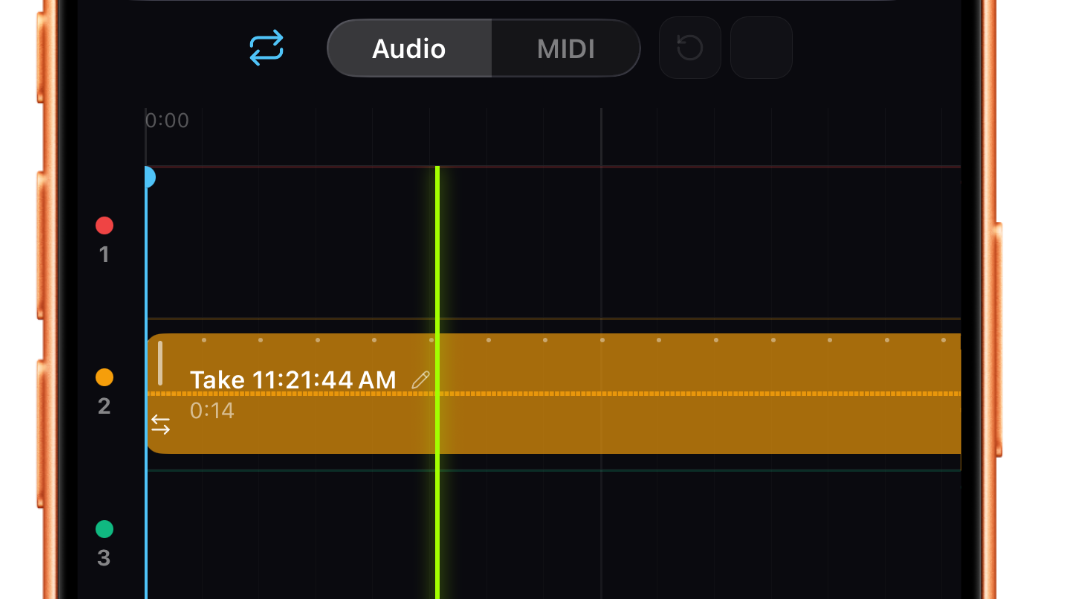
The timeline is the main editing canvas. It has two axes:
- Horizontal — time, moving left to right. The ruler at the top shows M:SS timestamps and beat grid lines.
- Vertical — tracks, one row per track (8 audio or 8 MIDI).
Navigating the timeline:
- Scroll horizontally to move through time.
- Scroll vertically to see all 8 track rows if they don’t all fit.
- Tap anywhere on an empty track row to move the playhead to that position.
- Long-press an empty track row to open loop point and clip-paste options.
The playhead is the thin green vertical line. It moves during playback and recording.
Track row labels (the narrow left column) show the track number and a color dot. Track colors are fixed per track and carry through to clip display and mixer strips.
5. Mixer
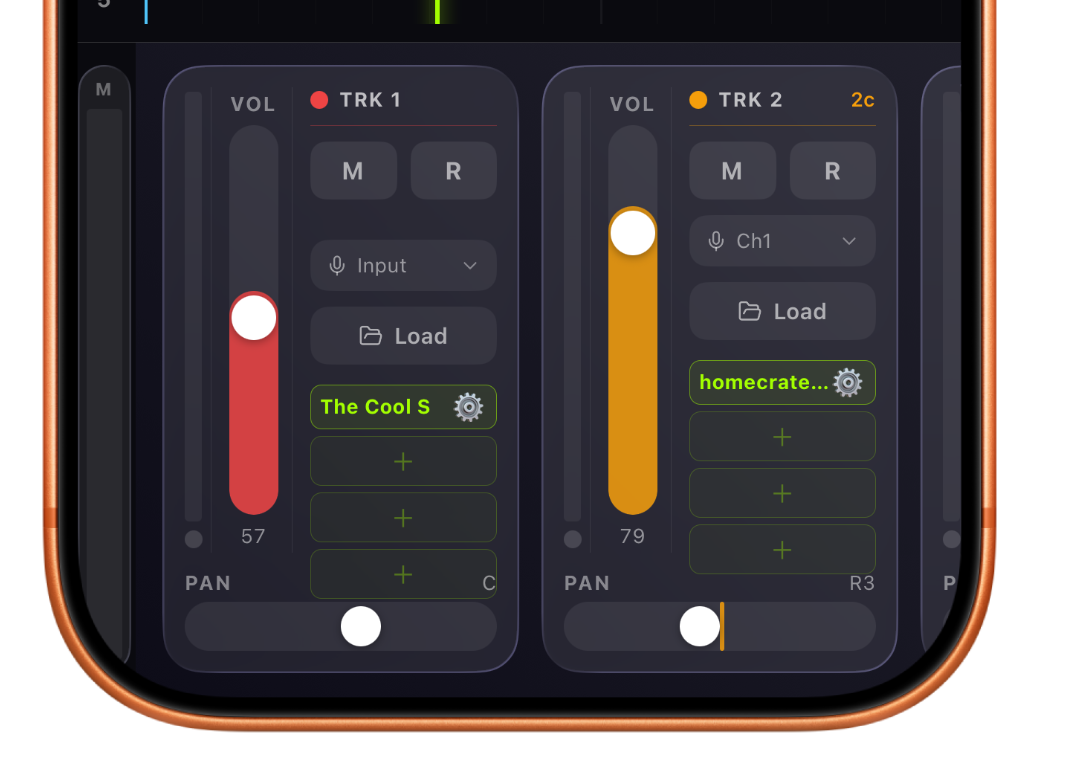
The mixer sits at the bottom. Scroll it horizontally to see all 8 channel strips.
The master strip (far left, labeled M) shows the overall output level.
Each channel strip contains (top to bottom):
- VU meter
- Volume fader (vertical slider)
- Track number and color dot
- Mute (M) and Arm/Record (R) buttons
- MIDI channel selector (for tracks with instrument plugins)
- Input source selector
- Load button (import a file)
- AUv3 plugin slots (up to 4 per track)
- Pan slider (horizontal, at the bottom)
In MIDI track mode, the strip is replaced by a MIDI channel strip showing input device, output device, channel selectors, and AUv3 instrument routing. See MIDI Tracks Overview.
In Spatial mode, the mixer shows spatial position pickers instead of pan sliders. See Spatial Mode Overview.
Floating Panels
Two panels can float freely over the interface:
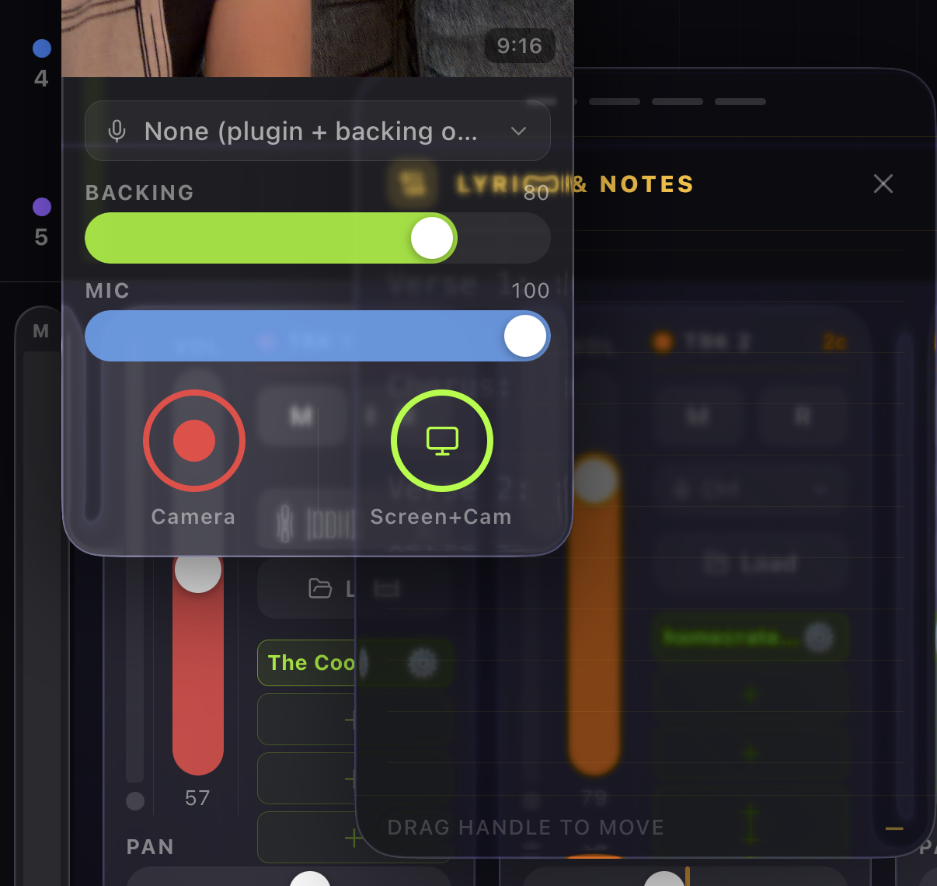
- Lyrics & Notes panel — A sticky-note style text pad for lyrics or session notes. Open it from the ⋯ menu. Drag by its handle bar to reposition. See Lyrics & Notes Panel.
- Camera overlay — A video recording overlay for capturing performance video in sync with audio. Available in the ⋯ menu when not in Spatial mode. See Video Recording.
Next Steps
- Ready to record? See Your First Recording.
- Want to understand the grid and BPM? See The Ruler, Grid & BPM.
- Loading existing audio? See Loading Audio Files onto Tracks.