Time-Stretch & Fitting Clips to Tempo
Time-stretch changes how long a clip plays for without changing its pitch. It’s how you drop a loop recorded at 96 BPM into a 120 BPM song, tighten a take that runs slightly long, or fit a sample neatly into exactly four bars — all without the chipmunk/slow-motion effect that plain speed changes give you.
Stretching is non-destructive. The original audio file is never touched; the clip simply plays back at a different rate. Set it back to 100% at any time and you’re exactly where you started.
Where to Find It
Long-press any audio clip (or tap the ✏️ pencil icon) to open the Clip Edit modal. The Stretch section sits below the Gain / Fade row.
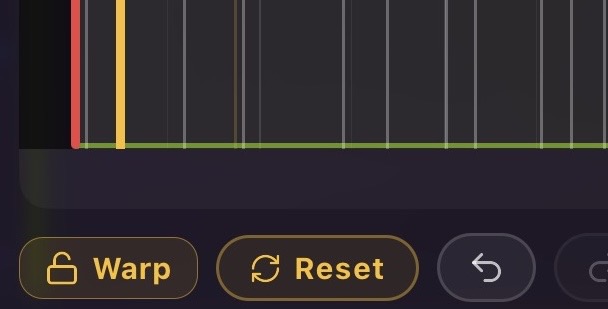
| Control | What it does |
|---|---|
| Stretch slider | Sets the stretch amount from 50% (half length, twice as fast) to 200% (double length, half speed) in 1% steps |
| Readout | Shows the current percentage and the resulting clip length, e.g. 150% · 0:18 |
| Reset | Returns the clip to 100% — no stretch |
| 1 / 2 / 4 / 8 bars | Fit-to-bars presets — stretch the clip so its trimmed span lands exactly on that many bars at the project tempo |
Changes apply when you tap Apply. Tapping Cancel leaves the clip as it was.
Fitting a Clip to Bars
The bar chips are the fast path. They read your project’s tempo and time signature, work out the exact ratio needed to make the clip’s trimmed span fill that many bars, and apply it in one tap.
A bar chip is greyed out when the stretch it would need falls outside the 50–200% range. If a two-second sample can’t reach eight bars, the 8-bar chip is simply unavailable — trim differently, or use a shorter target.
Because the presets work from the trimmed span, set your IN and OUT points first, then fit. See Working with Audio Clips for trimming.
[SCREENSHOT: A clip before and after tapping the "4 bars" preset, with the grid showing the exact bar landing]
Where Stretch Is Honored
A stretched clip sounds the same everywhere in Homecrate. The stretch is applied on every render path, not just in the timeline preview:
- Playback — including seeking to any position and looping inside a loop region
- Recording — backing tracks you record against play stretched, so your new take lands in time
- Mixdown and stems — stretch happens before your plugins, so an amp or compressor hears the audio at its final speed, exactly like it did while you were listening. See Mixing Down to Stereo
- Spatial rendering and spatial export — including APAC/Ambisonics exports and spatial stems
Clip fades, gain, and automation all ride along correctly: fades stay the length you dialled in as heard durations, and automation lanes stay attached to the same musical moments in the audio.
Behavior You Should Know About
- The transport stops when you apply a stretch change. Homecrate rebuilds the clip’s audio buffers, so playback halts rather than glitching mid-render. Press play again when you’re ready.
- Stretch is undoable. It’s its own undo step — see Undo & Redo.
- Splitting a stretched clip keeps the stretch. Both halves inherit the same rate, so the seam stays seamless. See Splitting Clips & Crossfading.
- Long, heavily stretched clips cost more. Stretched audio can’t use Homecrate’s lightweight streaming path, so it is decoded and held in memory instead. On a project stacked with long stretched clips you may notice more memory pressure and a longer pause before playback starts.
- Extreme settings sound like extreme settings. The stretch engine is pitch-preserving, not magic. Near 50% or 200%, percussive transients smear and sustained tones can take on a slight phasey, watery quality. Modest moves (roughly 85–120%) are essentially transparent.
- If stretching fails, you hear the original. In the rare case the engine can’t render a stretched buffer, Homecrate falls back to the un-stretched audio rather than dropping to silence. If a clip suddenly sounds like it’s at the wrong tempo, that’s the tell.
Tips
- Trim first, stretch second. The bar presets fit the trimmed span, so a stray count-in at the head will throw the fit off.
- Match the source, not the slider. If you know the sample’s original tempo, aim for
projectBPM ÷ sampleBPM— e.g. a 90 BPM loop in a 120 BPM song wants 75%. - Keep drums close to 100%. Percussive material shows stretch artifacts first. If a drum loop needs a big move, consider re-cutting it rather than stretching it far.
- Stretch after you’ve committed to a tempo. Changing the project tempo later doesn’t re-fit stretched clips for you — you’d re-tap the bar preset on each one.
- Use it as an effect. A pad or a vocal ad-lib at 180–200% makes a convincing atmospheric bed, artifacts and all.