Adding & Removing Tracks (Pro)
Every project starts with 8 audio tracks and 8 MIDI tracks. With Homecrate Pro, the audio side can grow to 16 tracks — useful when a collaborative session fills up with takes from several players, or when a production simply outgrows eight lanes.
MIDI tracks stay at 8.
Adding a track
- Switch to the Audio tab.
- Scroll to the bottom of the track rows.
- Tap the + in the empty lane below the last track.
A new track appears immediately — same clip editing, plugin slots, arming, and mixer strip as any other track. The + lane disappears once you reach 16 tracks.
Without Pro, the + shows a lock and opens the upgrade screen.
In a collaborative session with project sharing on, an added track syncs to everyone automatically. (Both devices need a current version of the app — older builds can’t represent tracks past 8.)
Removing a track
Only extra tracks (9–16) can be deleted — tracks 1–8 are permanent.
- Long-press the track number in the left sidebar.
- Confirm in the dialog.
Deleting a track removes its clips from the project, and any tracks below it shift up to fill the gap. Playback must be stopped first.
In a session: delete extra tracks from the host device. A member’s delete is reverted by the next sync (the host’s project is authoritative for structural changes).
The Master Track
The master strip (far left of the mixer, labeled M) is now a full channel of its own. Tap the chevron handle on the master VU strip to slide out the Master Channel drawer:
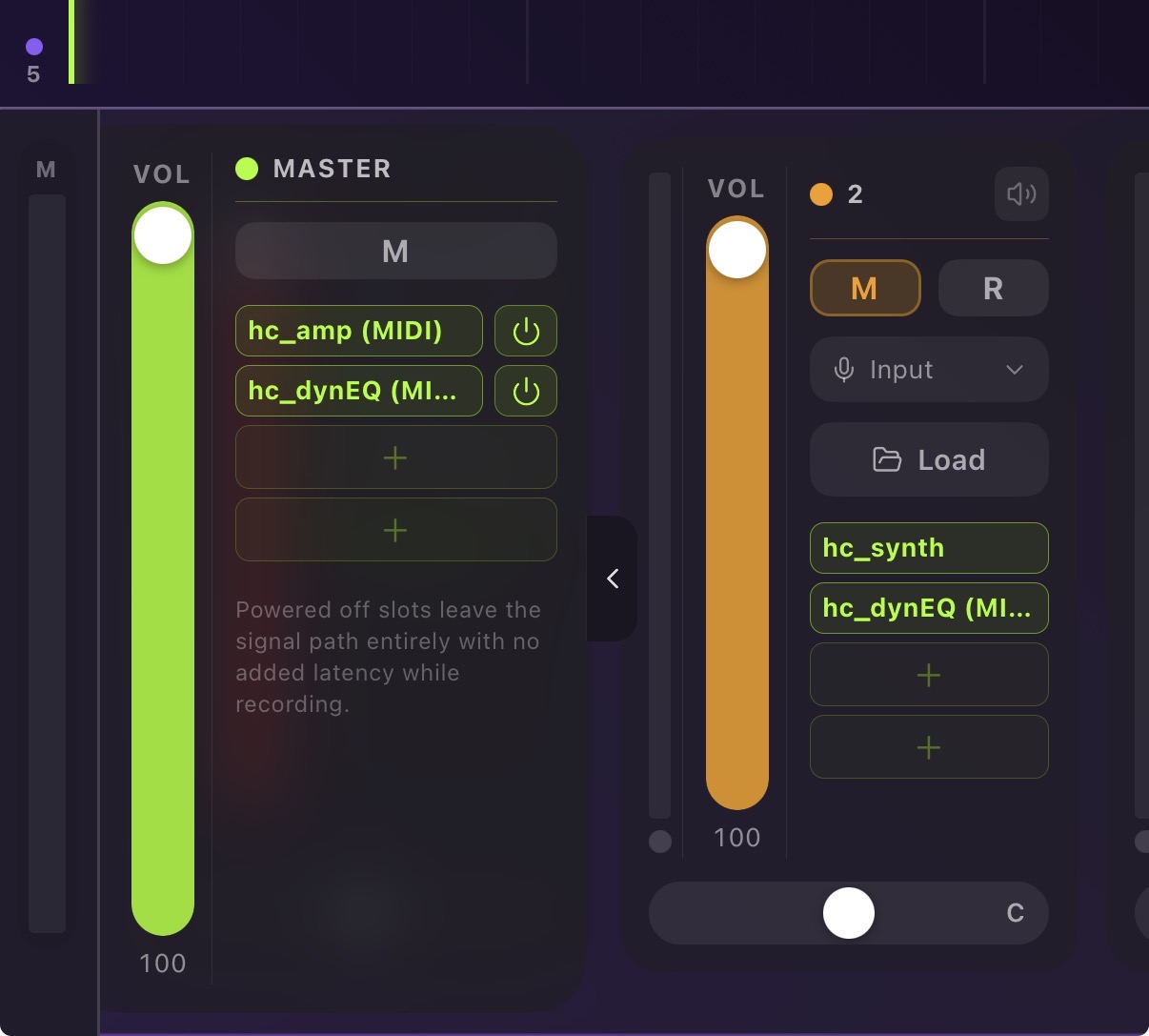
- Master Volume — the overall output level of the whole mix.
- Mute — silence the master.
- 4 plugin slots — load AUv3 effects across the entire mix, exactly like a track. This is where you put mastering-bus processing — for example homecrate amp with NAM running in stereo as a stereo mastering chain, a bus compressor, or an EQ.
Each master plugin slot has a power toggle. Turning a slot off fully disconnects it from the audio engine (not just a bypass) — it adds zero latency — so you can keep a mastering plugin loaded while you record and only switch it in when you mix.
Master plugins and the master volume are saved with your project and sync in collaborative sessions like any other plugin. In a shared session, the host’s master chain is the one that counts for export.
Things to know
- Track colors repeat past track 8 (track 9 reuses track 1’s color, and so on).
- Free projects with more than 8 tracks (e.g. a session mirror from a Pro host) still play back — the extra tracks just show locked controls.
- Adding and removing tracks is not currently part of undo/redo history.
Next Steps
- Recording several players at once? See Collaborative Sessions.
- Arming and monitoring the new track: Arming Tracks & Input Monitoring.