Connecting an AI Agent (MCP Server)
homecrate can let an AI agent on your computer work inside the recorder. You talk to the agent in plain language, and it reads the open project and makes the edits for you: tracks, clips, MIDI parts, plugins, automation, section markers, homecrate crate patches, and the video effects on the camera.
It works through MCP (Model Context Protocol), the standard most coding agents and AI desktop apps use to talk to other software. homecrate doesn’t include a model or an account for this. You bring the agent you already use, and homecrate gives it a set of controls for the recorder.
Pro feature. The MCP server is part of homecrate Pro. It is hidden along with the other AI features when Hide AI is on for the Recorder.
What You Need
| Requirement | Detail |
|---|---|
| homecrate Pro | On iPhone, iPad, or Mac |
| The recorder open | The server only runs while the recorder is on screen. Close the recorder and the agent loses its connection. |
| The same network | The device running homecrate and the computer running the agent need to be on the same Wi-Fi or wired network. If homecrate is on the same Mac as the agent, that works too. |
| An MCP client | Any agent or app that can connect to an MCP server over HTTP and send an Authorization header. Claude Code is the one the setup button is written for. |
| Hide AI off | In recorder settings, or under the Recorder switch in the app’s main Settings |
Turning It On
- Open a project in the recorder.
- Tap ⋯ menu → Settings, then the General tab.
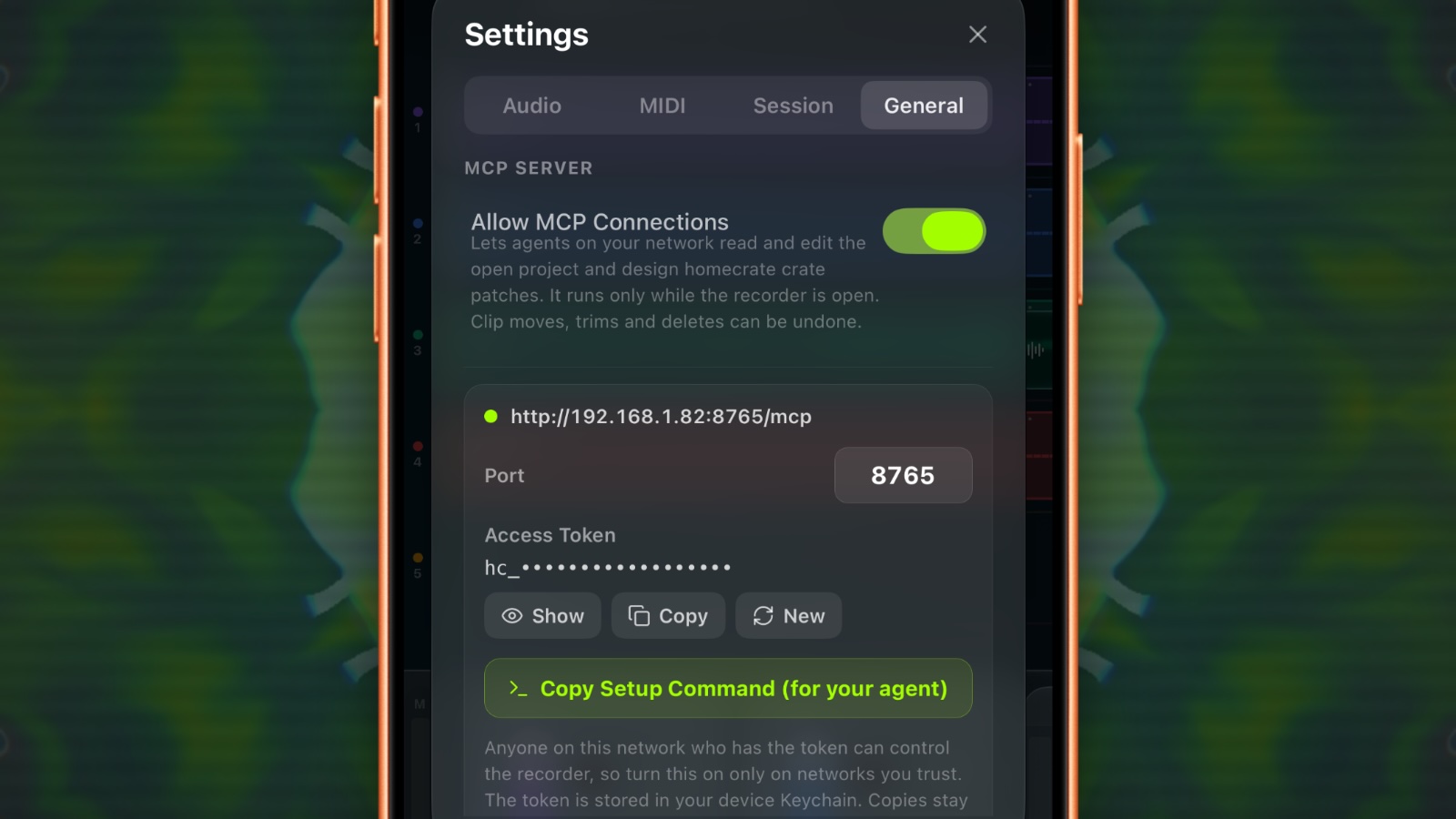
- Under MCP Server, turn on Allow MCP Connections.
The status line shows the address once the server is ready, something like http://192.168.1.24:8765/mcp. If it reads Connect this device to Wi-Fi to reach it, the server is running but the device has no network address another computer can reach.
| Control | What it does |
|---|---|
| Status | Green when the server is running. Shows the address an agent connects to. |
| Connected | The names of the agents connected right now |
| Port | 8765 by default. Change it if something else on the device already uses that port. Any number from 1024 to 65535. |
| Access Token | The password an agent sends with every request. Hidden until you tap Show. |
| Copy | Copies the token |
| New | Makes a new token. Every connected agent is disconnected and needs the new one to reconnect. |
| Copy Setup Command | Copies a ready-to-paste command that adds homecrate to Claude Code, with the address and token already filled in |
Connecting an Agent
Claude Code
- Tap Copy Setup Command (for your agent).
- Paste it into a terminal on your computer and run it. It looks like this:
claude mcp add --transport http homecrate http://192.168.1.24:8765/mcp --header "Authorization: Bearer hc_..."- Start Claude Code and ask it something about your song, like “what’s in my project right now?”
You only do this once per computer. If the device’s address changes later (a different network, or the router hands out a new one), remove the old entry and copy the command again.
Copies don’t leave the device. The command and the token are copied for that device only, so Universal Clipboard won’t carry them to your Mac, and they clear after two minutes. If homecrate is on your phone or iPad, send the command to your computer however you like (AirDrop, Notes, a message to yourself), or tap Show and type the token in by hand. If homecrate is on the same Mac as the agent, just paste it.
Other agents
Any client that supports MCP over HTTP will work. Give it:
- URL: the address from the status line, ending in
/mcp - Header:
Authorization: Bearerfollowed by your token
Some desktop chat apps only accept MCP servers on the public internet over HTTPS. Those can’t reach a device on your local network, so use an agent that runs on your own computer.
What an Agent Can Do
Everything below is something you can ask for in your own words. The agent figures out which controls to use.
The song
| Area | What it can do |
|---|---|
| Project | Read the whole project: tracks, clips, MIDI parts, plugins, markers, tempo, key. List, open, rename, save, and start projects. |
| Transport | Play, stop, move the playhead, set a loop, turn the metronome on or off |
| Tempo and key | Set the tempo, time signature, and key |
| Section markers | Add, edit, and remove markers, including the tempo, time signature, and video preset a marker switches to |
| Undo | Undo and redo, the same history as the buttons in the recorder |
Tracks and clips
| Area | What it can do |
|---|---|
| Mixer | Add audio tracks, rename them, set volume, pan, mute, solo, and arm |
| Audio clips | Move, trim, split, duplicate, reverse, and delete clips. Set clip gain and fades. Insert silence or move everything after a point. |
| Listening | Find the notes and the transients in a recording, so it can tell where the hits are or what a part plays |
| MIDI | Write a MIDI part note by note, rewrite one, or generate one in the project’s key. Move, split, duplicate, and delete MIDI clips. Turn an audio clip into MIDI. Set a MIDI track’s instrument, channel, input, and output. |
Plugins and sound
| Area | What it can do |
|---|---|
| Plugins | List what’s installed, load and remove plugins, read and set their parameters, and load their presets |
| Automation | Read automation, place exact points, or draw shapes across a section of the song: ramps, swells, LFOs, and steps |
| homecrate crate | Read the loaded patch, start from a factory patch, check a patch for problems, and load a new one. It can build a patch from scratch and wire it up. See homecrate crate. |
Video
| Area | What it can do |
|---|---|
| Camera | Open and close the camera panel, set the framing (9:16, 16:9, 1:1, 4:5), and turn the camera itself off so only the effects show |
| Effect layers | Add, edit, reorder, and remove layers. Read every effect’s controls. Set what a layer is allowed to touch (you, your instrument, a picture layer, or nothing). Make a layer react to the music. |
| Shaders and sketches | Write Shadertoy, ISF, or p5 code, check that it compiles, and load it into a Custom Shader or p5 layer. A shader that doesn’t compile is refused, so a broken one never replaces a working one. |
| Pictures | Download a photo or video from a web link and put it in a Media Overlay layer, cropped to fill the frame or fitted inside it |
| Presets | Save the current look as a video preset, load one, and delete the agent’s own. Presets it saves show up in the drawer and in the section marker editor, the same as yours. |
| Looking | Take a small picture of the current frame to check the result. See Snapshots below. |
Making a Music Video
This is where all of it comes together. Ask for something like “make me a music video for this song” and a good agent will:
- Read the song and its sections. If there are no section markers, it adds them, starting at measure 1.
- Open the camera and pick a frame shape.
- Build one look for each section, save each as a video preset, and point that section’s marker at it.
- Load the first look and save the project.
Then you press record in the camera panel. As the song plays, the look changes at every marker, in the preview and in the finished video. See Video Capture & Effects for how section markers switch presets.
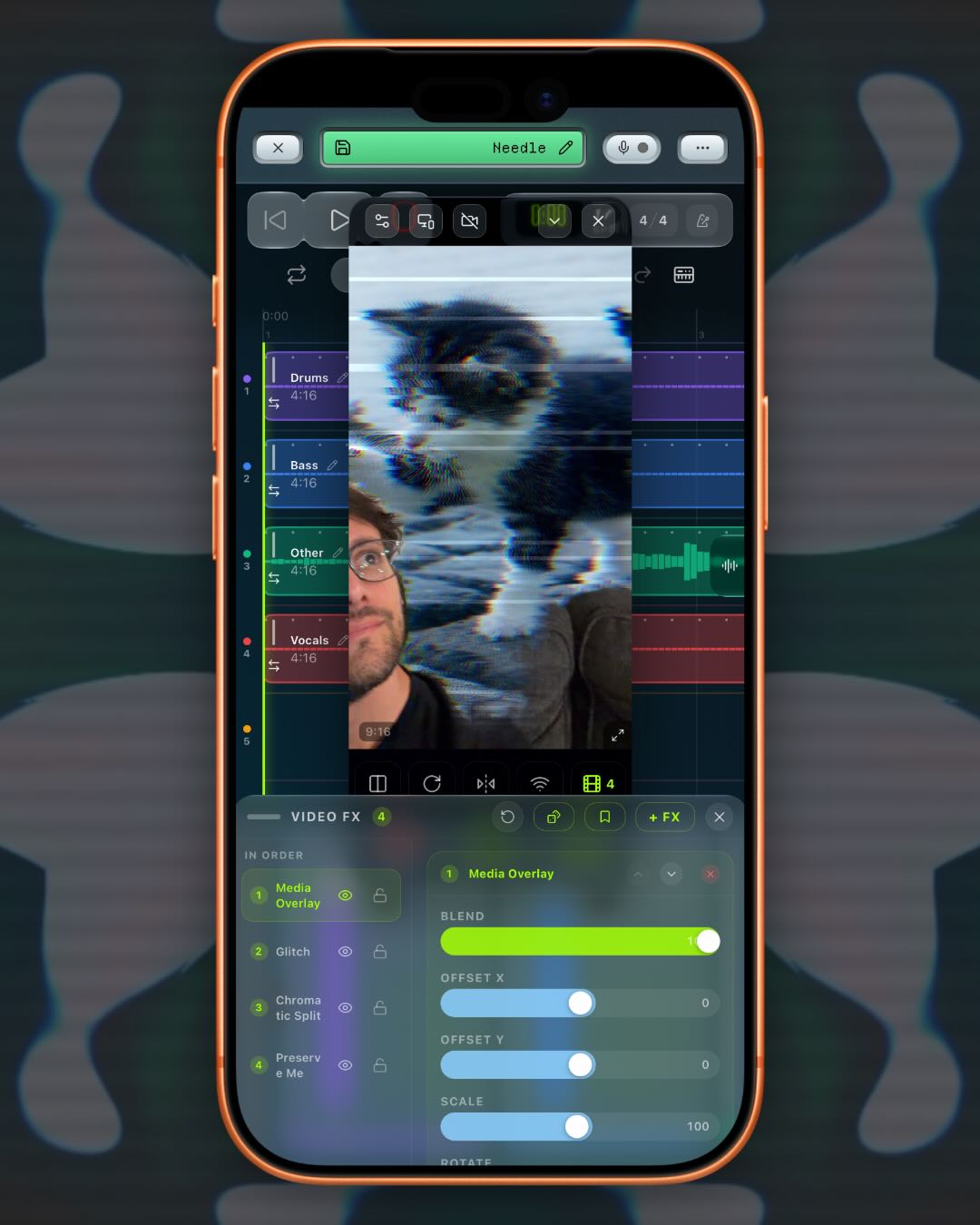
You can be specific. “A cute cat picture in the background, glitching” turns into:
- a picture of a cat in a Media Overlay layer at the bottom of the stack,
- Preserve Me above it so you stay in front of the picture,
- a glitch layer set to touch only the picture, so the cat glitches and you don’t.
If you’d rather not be in the shot at all, ask it to turn the camera off. The picture becomes the whole frame.
Pictures from the web. The agent needs a direct link to an image or video file, over
https. Links to addresses on your own network are refused. Files can be up to 60 MB. Use pictures you have the right to use, especially for anything you’ll post.
Snapshots
An agent can ask for a picture of what the camera is showing, with every effect applied, to check that a shader or a layout looks the way it meant. The picture is small and compressed on purpose, because every image costs the agent far more of its memory than text does.
Agents are told to use this sparingly. If yours checks after every small change, ask it to only look when it’s finished with a look, or when something might have gone wrong.
Things to Know
- Recording is yours. An agent only starts a recording when you ask it to, because a take uses your microphone or interface. It can’t start a camera take; you press record in the camera panel.
- Not everything goes into undo. Clip moves, trims, deletes, inserting silence, and moving everything can be undone from the recorder. Automation, MIDI notes, section markers, crate patches, and video layers don’t go into the undo history, so ask the agent to read before it overwrites something you care about.
- Save when you’re happy. Edits change the open project the same way your own edits do. Ask the agent to save, or save it yourself.
- Switching songs saves first. When an agent opens another project or starts a new one, the current project is saved before it switches.
- Agents can be wrong. It’s working from a description of your song, not from listening the way you do. Check what it did, and use undo when it gets something wrong.
Privacy and Security
- homecrate doesn’t send your song anywhere. The server runs on your device and only answers the agents you connect.
- Your agent does. Whatever the agent reads (track names, notes, plugin settings, snapshots of the camera) goes to whoever runs that agent’s model, under their terms. If that matters for a project, use an agent you’re comfortable with, or leave MCP off for that song.
- The token is the key. Anyone on the same network who has the token can control the recorder while it’s open. Turn MCP on only on networks you trust, and tap New if you think the token got out.
- It only runs while you’re in the recorder, and only while Allow MCP Connections is on.
- The token is stored in your device Keychain. Copies of it stay on the device and clear after two minutes.
Troubleshooting
The agent can’t connect.
- Check the recorder is open and the status dot is green.
- Check both devices are on the same network. Guest networks and some office networks block devices from seeing each other.
- A VPN on either device can send traffic somewhere else. Turn it off and try again.
- If you made a new token, the agent needs the new one. Copy the setup command again.
The status says “Connect this device to Wi-Fi to reach it.” The server is running, but the device has no address another computer can reach. Join a Wi-Fi network.
The status says “Not running” with a message about the port. Something else on the device is already using that port. Change Port to another number, then copy the setup command again so the agent uses the new one.
The MCP Server section isn’t there. It needs homecrate Pro, and it’s hidden when Hide AI is on for the Recorder.
The agent says a shader or sketch failed. That’s the check working. The agent sees the same compile errors the drawer shows, and it can fix the code and try again.